
How to Connect Slack to OpenClaw
Link your Slack workspace to OpenClaw to receive messages and control your agent from Slack channels.
Slack lets your OpenClaw agent reply in DMs and help with team workflows. This guide follows the exact setup flow in Molten.Bot.
Before You Start
- A running OpenClaw workspace in Molten.Bot
- A Slack workspace where you can create apps
- About 5-10 minutes to complete setup
Step 1: Open Settings
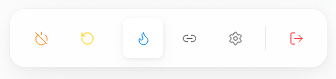
In your workspace, use the bottom dock and click the Settings icon.
Step 2: Open Channel Management
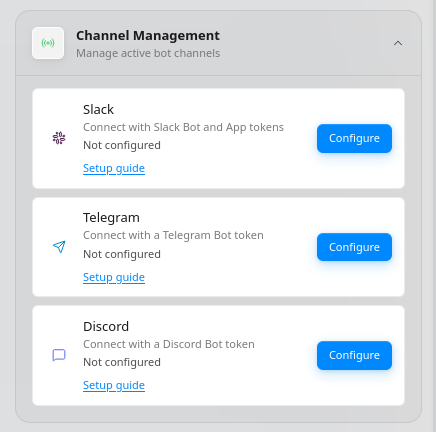
In Settings, open Channel Management, then find Slack and click Configure.
Step 3: Configure Slack
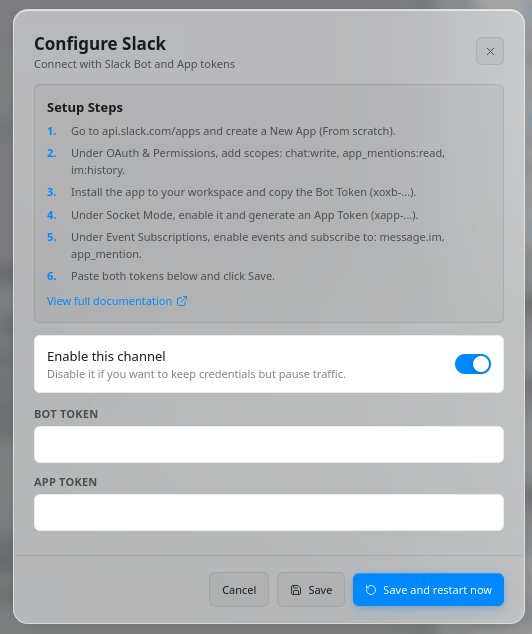
In the Slack configuration dialog, complete the setup steps shown in the UI:
- Go to api.slack.com/apps and create a new app (from scratch).
- In OAuth & Permissions, add scopes:
chat:write,app_mentions:read, andim:history. - Install the app to your workspace and copy the Bot Token (starts with
xoxb-). - Enable Socket Mode and create an App Token (starts with
xapp-). - In Event Subscriptions, enable events and add:
message.imandapp_mention. - Paste both values into Bot Token and App Token.
- Keep Enable this channel turned on, then click Save and restart now.
Test Your Bot
- Open Slack and DM your bot (or mention it in a channel it is invited to).
- Send a message like Summarize today's unread messages.
- Confirm your OpenClaw agent responds.
Troubleshooting
- No response: Re-check both token values in Molten.Bot.
- Only works sometimes: Confirm Event Subscriptions include
message.imandapp_mention. - Connection error: Verify Socket Mode is enabled and the App Token is valid.
Need help? Check the OpenClaw documentation or join the community Discord.